
Calendar
The Calendar places every work item on its dates. Use it to see what’s due, plan undated work and keep team events next to your issues.
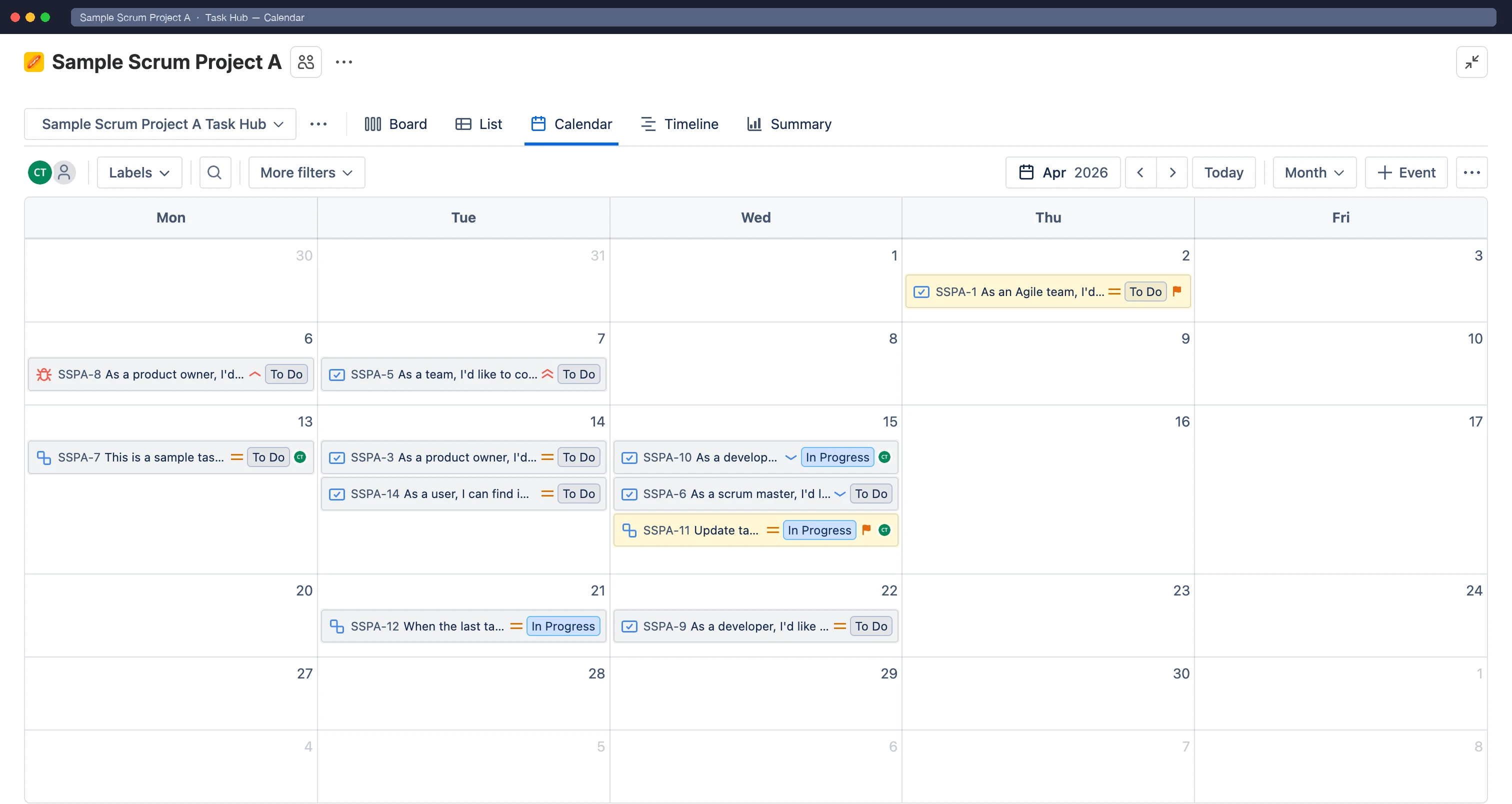
Pick Day, Week, Month, Quarter or Agenda from the period menu in the toolbar. Use the arrows to move between periods, and Today to jump back. Task Hub remembers the date you were viewing while you work.
Which dates are used
Section titled “Which dates are used”By default, a work item appears on its Due date. A Task Hub admin can choose a different Event Start Field and Event End Field, for example Start date and Due date, so that work spans several days. See Calendar settings.
Schedule and reschedule
Section titled “Schedule and reschedule”- Drag an item to another day to change its dates.
- Drag the edge of a multi-day item to change its start or end.
- Select ••• › Unscheduled work items to see items with no date, then drag them onto the calendar.
- Click an item to open and edit it.
Releases
Section titled “Releases”In ••• › View settings…, turn on Show releases to see your spaces’ versions on their release dates. Select a release to open it in Jira. This setting is saved per user.
Team events
Section titled “Team events”Task Hub admins can add events that aren’t Jira work items, such as a meeting, vacation, trip, event or deadline. Select Event in the toolbar, then set the title, type, dates and an optional description. Events can repeat daily, weekly, monthly or yearly.
- Everyone who can view the Task Hub sees its events.
- Only the event’s creator or a Task Hub admin can change or delete it.
- To hide events, turn off Show events in View settings….
- A Task Hub can hold up to 500 events. Events that ended more than a year ago are removed automatically.
Overlay other Task Hubs
Section titled “Overlay other Task Hubs”Select ••• › Calendars on this view… to show work from other Task Hubs on this calendar. Choose a space and a Task Hub, then pick its color, or hide or remove it later. Overlaid items use that color with a dashed outline. They’re read-only here, and they open in Jira’s issue view.
Display options
Section titled “Display options”In ••• › View settings… you can:
- show or hide weekends and week numbers
- choose which day the week starts on
- choose the Time slot size and Highlight working hours in the Day and Week views
- choose which fields appear on events (Show on events)
Export
Section titled “Export”- ••• › Export (.ics)…: export This period or the Whole calendar to import into Google Calendar, Outlook or Apple Calendar. Choose Show as free if the items shouldn’t block time.
- Single item: right-click an item and add it to Google Calendar or Outlook, or download it as
.ics.
Calendar settings
Section titled “Calendar settings”Task Hub admins can open ••• › Calendar settings…, or Configure › Calendar, to set the start and end date fields used for work items.