
List
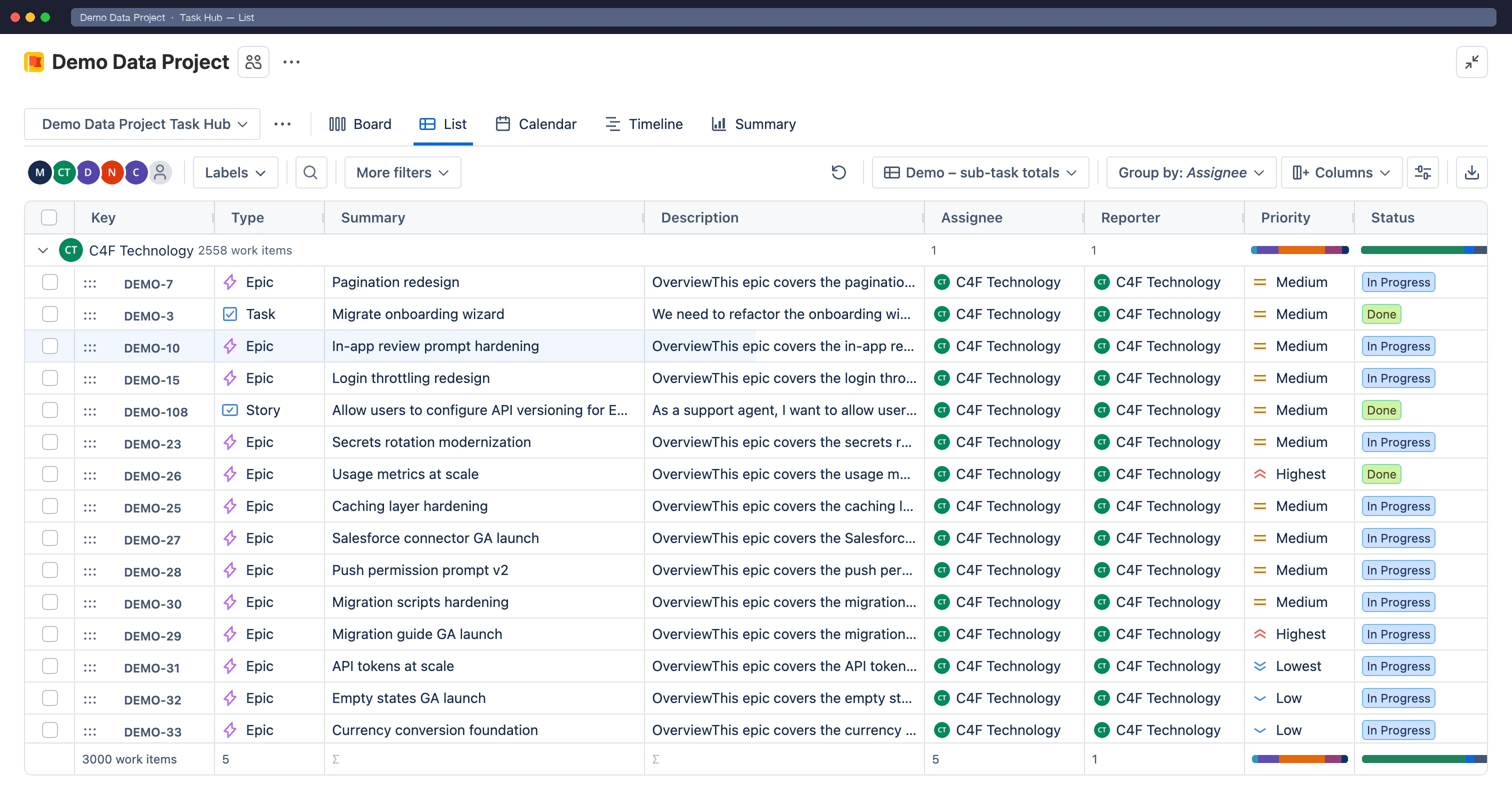
The List shows every work item in the Task Hub as a row in a table. It works like a spreadsheet: sort and filter by any column, add totals and formulas, edit cells in place, and copy and paste between rows.
Columns
Section titled “Columns”- Select Columns in the toolbar to choose which fields to show. You can add any system or custom field, plus calculated columns and formula columns.
- Drag column headers to reorder them, and drag their edges to resize them.
Open a column header’s menu (••• next to the heading) to:
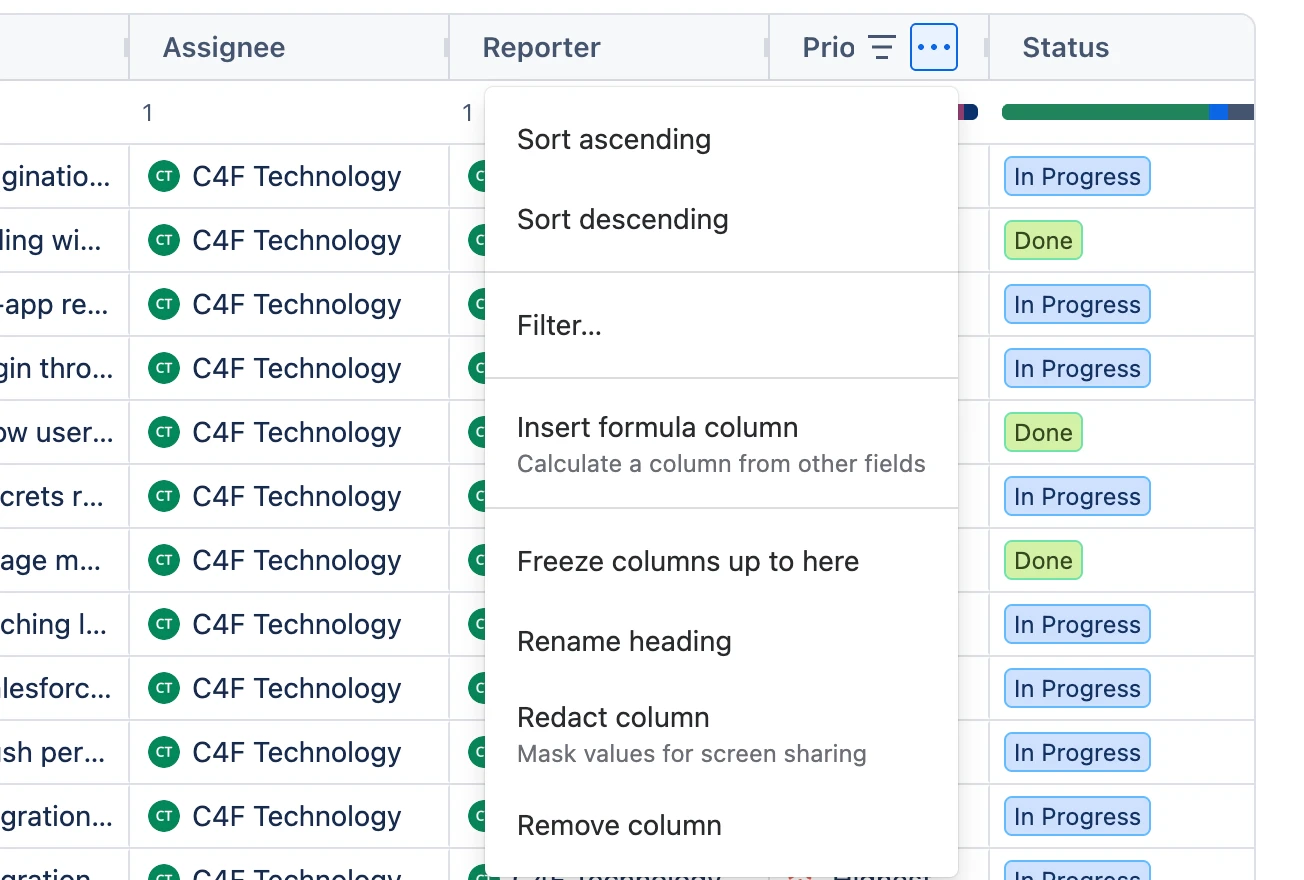
- Freeze columns up to here, so they stay in place when you scroll sideways
- Rename heading for this table, and reset it later
- Redact column to mask its values while you share your screen
- Remove column
Your column choices are saved for you, per Task Hub.
- Click a column header to sort by it.
- Shift-click more headers to sort by several columns.
- Or use Sort ascending, Sort descending and Clear sort in the header menu.
When rows are grouped, sorting applies inside each group.
Filter by column
Section titled “Filter by column”Select Filter… in a column’s header menu. Depending on the field, you can:
- Pick values from the values in that column
- Match text, optionally with a regular expression
- set a Number range
- set a Date range
Column filters work on top of the Task Hub’s quick filters and search. Select Clear filter in the header menu to remove one.
Use Group by to group rows by status, assignee, priority, epic, work item type, space or another field. Each group header shows its count. Collapse groups to scan quickly.
Hierarchy
Section titled “Hierarchy”Child work items and subtasks can be shown under their parent. Expand or collapse a parent with the chevron next to it.
Sum-up row
Section titled “Sum-up row”Open Display options in the toolbar and turn on Sum-up row to show totals under the column headings. Click a column’s sum-up to choose how it’s calculated:
- Count, Sum, Average, Median, Minimum, Maximum
- Done – totals and Done – percentage
- Distribution, Unique values, Most common
When rows are grouped, each group header shows the same totals for its group. Parent rows also roll up the numbers of their sub-tasks.
Display options also has Compact rows, to fit more work items on screen.
Calculated columns
Section titled “Calculated columns”Calculated columns work out values from each work item’s fields and history. Add them from Columns, under Calculated columns:
- Time in current status, Previous status, Date of last status change
- Time in each of the Task Hub’s board columns
- Number of status changes, Number of assignee changes, Time with current assignee
- Time since created, Time since updated, Time between created and resolved, Days to due date
- Sub-task progress, plus the number of sub-tasks, comments, attachments, linked work items, watchers and fix versions
Calculated columns are read-only. You can sort, filter and total them like any other column.
Formula columns
Section titled “Formula columns”A formula column calculates a value from other columns, for example [Story Points] * 2.
- Open a column header’s menu and select Insert formula column.
- Give the column a name and type the formula. As you type, pick fields, columns and functions from the suggestions.
- Choose a format, such as Automatic, Percent, Hours, Duration from hours or Days.
- Select Add column.
Formulas support arithmetic, comparisons and functions such as IF, IFS, SWITCH, SUM, ROUND, CONCAT, CONTAINS, COALESCE, TODAY, DATEDIF, NETWORKDAYS and WORKDAY. Time tracking fields are in hours, and subtracting one date from another gives days.
To change a formula, select Edit formula… in its header menu. Formula columns are saved for you, and they’re included when you save a view.
For the full syntax, value types, errors and every function with examples, see the Formula reference. The editor links to it too: select Formula reference at the top, or Learn more next to a function’s syntax.
Conditional formatting
Section titled “Conditional formatting”Open Display options › Conditional formatting to color rows or cells that match a rule.
- Choose a column and a condition, for example Priority is Highest or Due date is before today (overdue).
- Apply it to the Whole row or This cell, and pick a color. You can also make it Bold.
- Add more rules with Add rule, and use Move up and Move down to set their order.
Turn formatting on or off from the status bar at the bottom of the table.
A view saves the table’s layout: columns, sort, filters, grouping, sum-ups, formulas and formatting. Open Views in the toolbar to switch views or save the current layout.
- My views are only for you, in this browser.
- Views Shared with this Task Hub are for everyone who can open the Task Hub. Turn on Share with everyone who can open this Task Hub when you save.
- If you change the table after opening a view, you can save the changes to the view, save a copy, or undo them.
Anyone who can view a Task Hub can share a view. Only the person who shared it, or a Task Hub admin, can change or delete it. A Task Hub can hold up to 50 shared views.
Edit in place
Section titled “Edit in place”Click a cell to edit it: summary, status, assignee, priority, labels, dates, estimates, issue color and most custom fields. Changing Status runs the matching workflow transition and opens its screen when one is needed.
Open a row to see and edit the full work item, including its description and comments.
Work like a spreadsheet
Section titled “Work like a spreadsheet”Select cells by dragging across them, or click one cell and Shift-click another, then:
- Copy with Ctrl/⌘+C to paste into other tools, or paste values into editable cells with Ctrl/⌘+V.
- Edit many rows at once: select cells in one column, type a value and press Enter. The value is copied to every selected row.
- Fill down with Ctrl/⌘+D, or drag the square at the corner of the selection.
- Clear the selected cells with Delete.
- Undo with Ctrl/⌘+Z.
Every change is saved to Jira, within your Jira permissions. Status and work item type can’t be pasted or filled, because they need a workflow transition.
The status bar shows the number of Cells and Filled cells in the selection, plus the Sum, Average, Min and Max of numbers.
Select and act
Section titled “Select and act”Select rows with the checkboxes, or with Shift-click for a range, to open the bulk menu. You can assign, edit, tag (add labels), set priority, watch, print, export or delete them. See Bulk update.
Export
Section titled “Export”Select Export to download the list as an Excel workbook or a CSV file. See Export to Excel & CSV.